
Shopping Cart


- Francisco Javier S.
- News
- 0 likes
- 31615 views
- 0 comments
- windows shutdown button, shortcut to shut down windows

Who doesn't want to do something quickly and well? It is a fundamental aspect when performing repetitive tasks; time-saving is key to energy efficiency and our daily life.
To achieve this, this simple tutorial explains how to accomplish this task. This method is completely valid for two of the most used Microsoft operating systems: Windows 10 and Windows 11.
Create a Shutdown Button for Windows and Place it on the Desktop
Shutting down Windows 11 is quite easy and only requires a few clicks. However, if there is a faster and more efficient way to do it, why not learn it and use it when needed?
To shut down Windows 11 more quickly, you can create a shortcut on the desktop. This icon will allow you to shut down your computer automatically with a simple double-click, further simplifying the process.
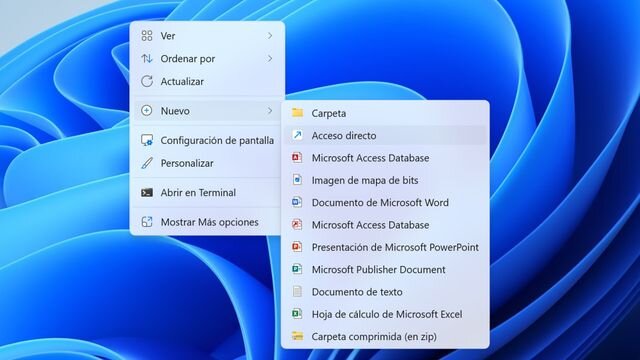
To create a shutdown shortcut, right-click on an empty space on your desktop.
In the menu that appears, select "New" and then choose the "Shortcut" option.
Tap and stretch with your fingers to zoom; pinch with your fingers to close.
The shortcut creation window will open.
In the window asking "What item would you like to create a shortcut for?", you need to enter a specific command in the field called "Type the location of the item". Enter the following:
Shutdown.exe /s /t 00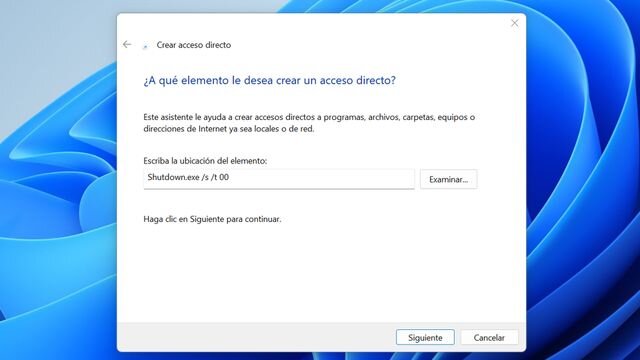
Tap and stretch with your fingers to zoom; pinch with your fingers to close.
Once you've entered the command, click Next.
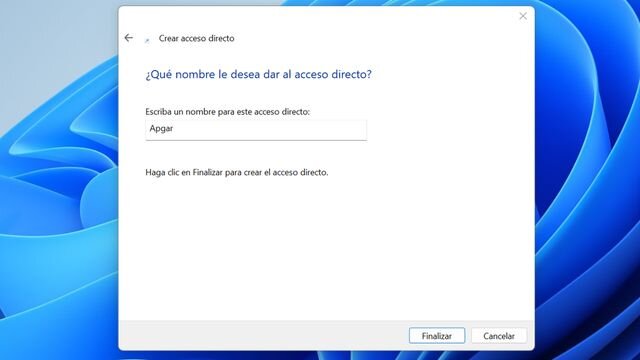
After this, you can type a name for your new shortcut, for example, Shutdown.
Tap and stretch with your fingers to zoom; pinch with your fingers to close.
Click the Finish button to complete the setup process.
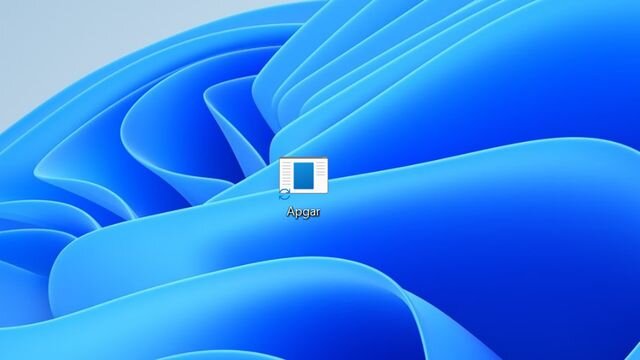
Tap and stretch with your fingers to zoom; pinch with your fingers to close.
Customize the Icon for the Shutdown Button
If you're not satisfied with the appearance of the icon you've created, you can customize it to better suit your tastes and clearly represent the function of shutting down Windows.
To change the shutdown icon in Windows, simply follow these steps:
Right-click on the icon you just created and choose the "Properties" option.
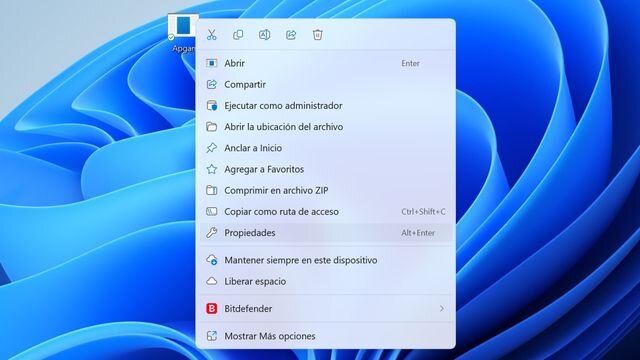
Tap and stretch with your fingers to zoom; pinch with your fingers to close.
Next, click on Change icon.
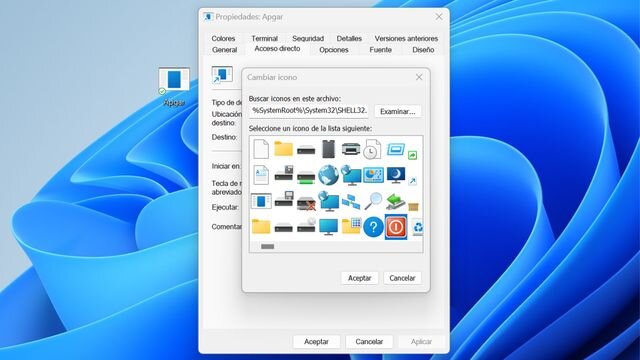
Tap and stretch with your fingers to zoom; pinch with your fingers to close.
Finally, choose an icon from the default options provided by Windows, so that it better reflects the function of the shortcut.

Tap and stretch with your fingers to zoom; pinch with your fingers to close.
And with this, we've seen how creating a shutdown shortcut in Windows gives us a simple and efficient way to shut down the computer with just one double-click.

Comments (0)